JPG & JPEG Compressor
Compress JPG images in your browser.
Add up to 20 photos and start with balanced JPEG output. Compare the result before downloading one image or the full batch as a ZIP.
Add your images
Choose your files to start. You can adjust the output settings below.
Browser-only processing
Maximum 25 MB and 40 megapixels per file, 250 MB per batch. Images are processed in this browser.
No image handy? Try our synthetic sample with these settings.

Output settings
Choose what should change
Ready when you are. Choose images or try the sample.
Check the edges before choosing JPEG
This original synthetic screenshot makes small text and line edges easy to inspect. These previews fit the page; open either file to compare at its full resolution. JPEG made this screenshot larger than our PNG result and can soften text edges. A photo may behave differently.
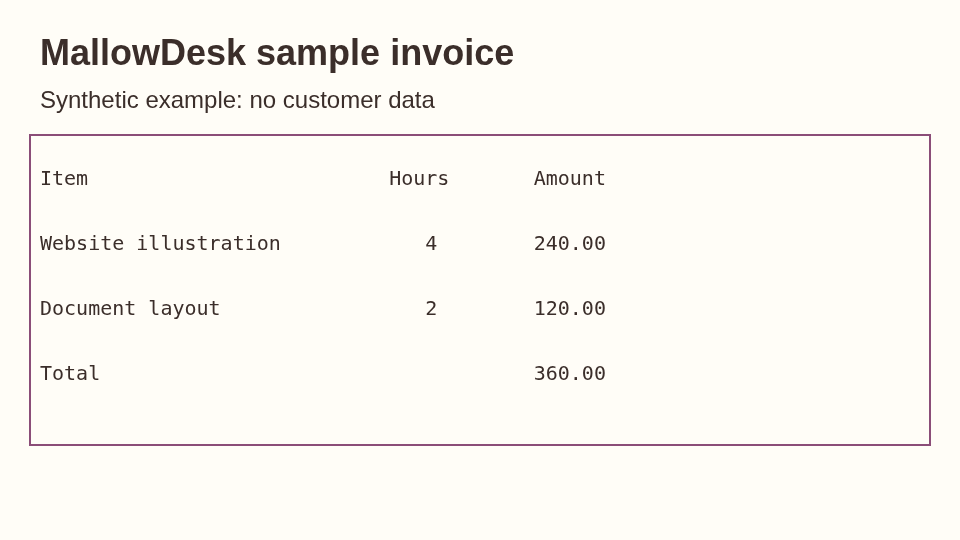
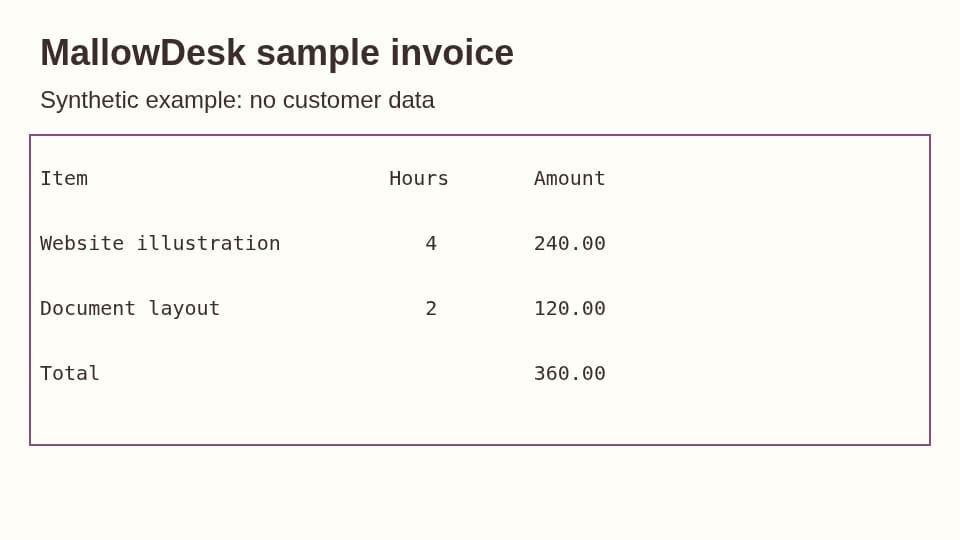
Balanced quality, original 960 × 540 dimensions, no target limit. Measured in Chromium 151.0.7922.34 on Linux, 2026-09-19. Get both files and the measurement record.
For a strict upload limit, enable Target file size in the workspace. If the current quality range cannot meet the limit, choose a smaller size or another format; the tool does not silently resize your image.
A practical JPEG, not the smallest file at any cost
Reduce photo size and inspect the tradeoff.
Balanced quality is a useful starting point for web images, email attachments, and uploads. The preview and byte totals show whether a smaller result still fits.
Add JPG or JPEG photos
PNG, WebP, and AVIF sources also work, but transparent pixels need a background when converted to JPEG.
Resize when dimensions are excessive
Reducing a 4,000-pixel photo to its real display size often saves more than lowering quality alone.
Compare before downloading
Review the original and result, dimensions, byte savings, and metadata status before keeping the file.
What does Balanced mean?
It starts at the app's recommended JPEG quality. You can switch to High, Small, or a custom value and reprocess the same queue.
Do the images leave this device?
Source bytes, filenames, previews, and results stay in this browser tab. Reloading clears the queue; only tool preferences may remain.
Need PNG, WebP, or AVIF instead?
Use the full image compressor to begin with the original format and choose another output only when needed.